The macOS Tools I Love
Five Mac utilities that make my life easier when Apple doesn't: a clipboard manager I pay for, and four tools I wrote because nothing else fit the need.
Every time I set up a fresh Mac, the same short list of utilities goes on before I do any real work. None of them are big. None of them cost much, and four of them cost nothing because I wrote them myself after getting annoyed enough. They all exist to patch one specific spot where macOS, for all its polish, just stops short.
One app I pay someone else to maintain, and four I maintain myself. Every one of them is free to run, and the four I built are on GitHub with the source right there if you want to read it, change it, or tell me I did it wrong.
Maccy, the clipboard manager I should have installed years ago
The Mac clipboard holds exactly one thing. Copy something new and the old thing is gone. For a machine this nice, that’s a strange place to leave a sharp edge in 2026.
Maccy fixes it the best way. It sits quietly and keeps a history of everything you copy, and a hotkey (I’ve set mine to ⌃C) pops up a searchable list. Start typing and it filters. Hit Enter and it pastes. That’s the whole app, and the restraint is the point: no cloud sync nagging you, no account, no “Pro” tier dangling features behind a paywall. It just remembers what you copied.
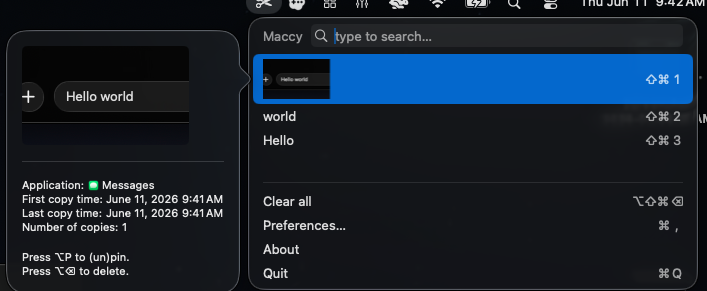
It’s open source, so the GitHub build is free forever, and you can install it with a single brew install maccy if you live in Homebrew. The same app, identical features, is also sold two ways to support the developer: $5 as a direct download from the Maccy website, or $10 on the Mac App Store. None of it unlocks anything; it’s all the same Maccy. If it earns a spot in your daily workflow, and it will, pay for it. The $5 website copy is the cheaper way to say thanks, the App Store is the convenient one, and the free build is there with zero guilt if money’s tight. That’s exactly what the options are for.
- Free / open source: github.com/p0deje/Maccy, or
brew install maccy - Support the dev: $5 direct from maccy.app or $10 on the App Store
The other four are mine.
SpaceHog, because AI models and games are only getting larger
I came to the Mac from years of Windows, where the answer to a full drive was WinDirStat: point it at a disk, get a treemap, and the giant rectangle is your problem. Nothing on macOS felt as immediate, so I built it.
SpaceHog scans a folder or a whole drive and gives you two views of the same data. On the left, a size-sorted tree, biggest first, with a bar and percent-of-parent on every row. On the right, a treemap where every file is a colored block sized by the disk it actually occupies. A wall of one color is almost always a cache, a folder of model weights, or a game install you forgot about. Double-click to zoom into a directory, right-click a row to reveal it in Finder or send it to the Trash, and the tree updates without a full rescan.
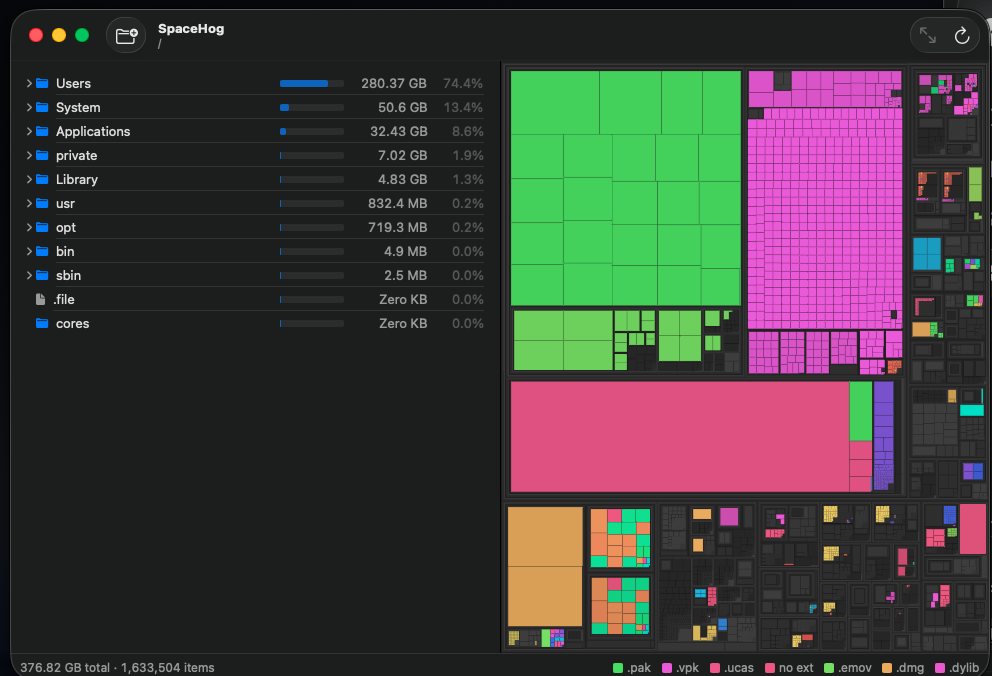
The measurement is the part I care about most. Sizes come from the blocks a file really takes on disk, not its logical length, which matters on APFS where sparse and cloned files lie about their size. It skips symlinks so it never double-counts through a link, and it knows about the synthetic kernel directories at the volume root that mirror the entire filesystem and would otherwise count everything twice. Native SwiftUI, no dependencies, a few hundred thousand files scanned in seconds.
- github.com/burghr/SpaceHog: grab the zip from the latest release, or build it with
swift run -c release.
Hop, an address bar for Finder
Finder has no address bar. The closest thing is Cmd-Shift-G, “Go to folder,” which is modal, forgets what you typed the moment it closes, and breaks your flow every time. I navigate by typing paths, so this one genuinely got in my way every day.
Hop is a bunny in the menu bar. Click it (or hit a global hotkey you set), and a panel drops down pre-filled with the path of your frontmost Finder window. Type a path, press Enter, Finder jumps there. It tab-completes like a shell: type ~/Doc, press Tab, get ~/Documents/, press Tab again to see and pick subdirectories. It keeps a history of where you’ve been and lets you star any folder as a favorite, so the places you actually go are one click away.
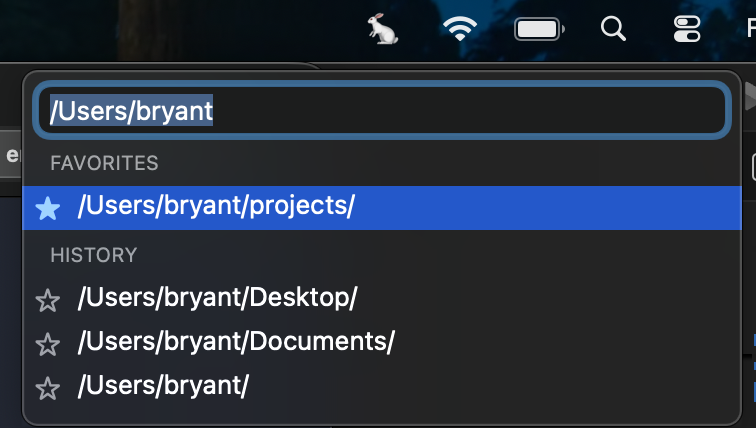
It even handles network shares: type smb://server/share and macOS mounts it and opens it, credentials prompt and all.
- github.com/burghr/Hop:
./run.shsets up a virtualenv on first launch and you’re off.
MacMixer, per-app volume without the driver tax
macOS has no public API to set another app’s output volume. You get one system volume, and that’s it. Want your music quiet while a game stays loud? Tough.
The well-known fix is Background Music, which is genuinely good software, but it works by installing a virtual audio driver and reading your audio back through what macOS treats as a microphone. That means a sudo driver install and, worse, the orange microphone dot lit in your menu bar forever, because the OS thinks something is listening. This one annoyed me on Teams calls: with the dot always lit, I couldn’t tell whether my real mic was actually live.
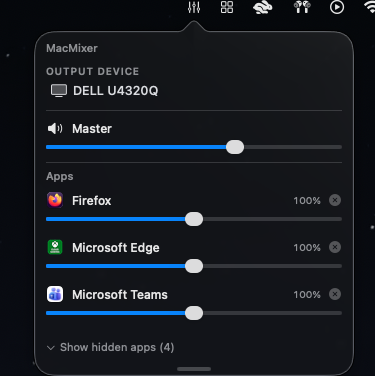
MacMixer takes a different road. macOS 14.2 added a first-class Core Audio process-tap API, which lets an app capture another app’s audio without pretending to be a microphone. So MacMixer gives you a 0–200% slider per app (above 100% boosts), a master volume, and an output-device picker, with no driver to install, no sudo, and no mic indicator. It even follows your AirPods when you connect them and untangles Chromium apps, which play their audio from a hidden helper process rather than the app you can see. The catch is the version floor: the process-tap API doesn’t exist before macOS 14.2, so that’s the minimum.
- github.com/burghr/MacMixer: a prebuilt universal app is attached to the latest release, MIT licensed, original code.
MacroDeck, a Stream Deck without the desk clutter
A Stream Deck sat on my “would be nice” list for years. The hardware is fine, but I never wanted it enough to have another device on my desk whose value is mostly the software anyway. So I wrote my own software.
MacroDeck lives in the menu bar and pops up a translucent grid of tiles. Each tile is a macro: a recorded key sequence, a snippet of text, a shell command, or a media key that fires the real macOS HUD. ⌃1 through ⌃0 trigger the first ten slots without even opening the grid, and ⌃⇧M toggles it when I want to see what’s there. Every tile gets an SF Symbol icon and an optional tint, picked from a searchable grid.
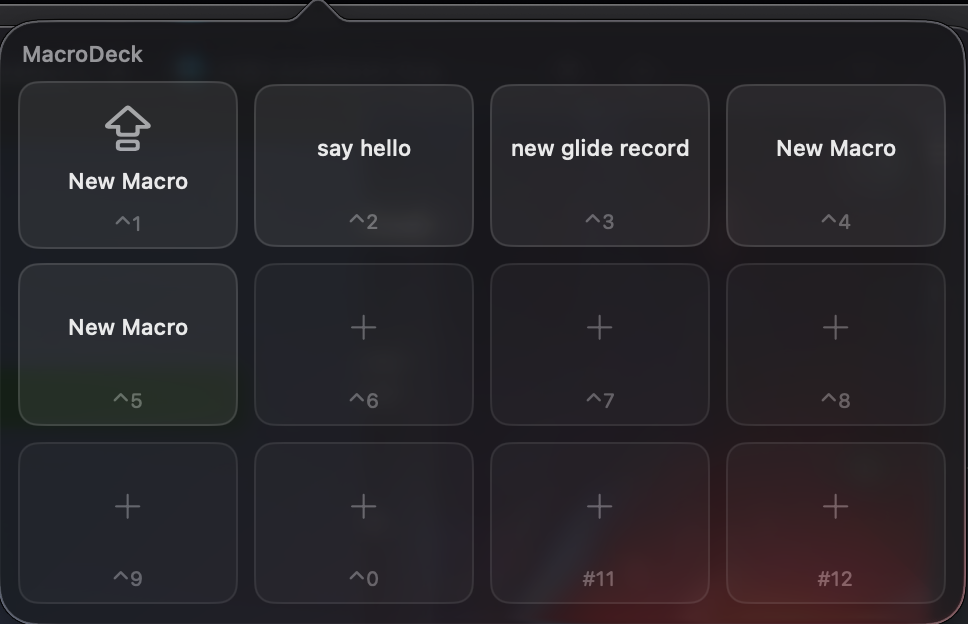
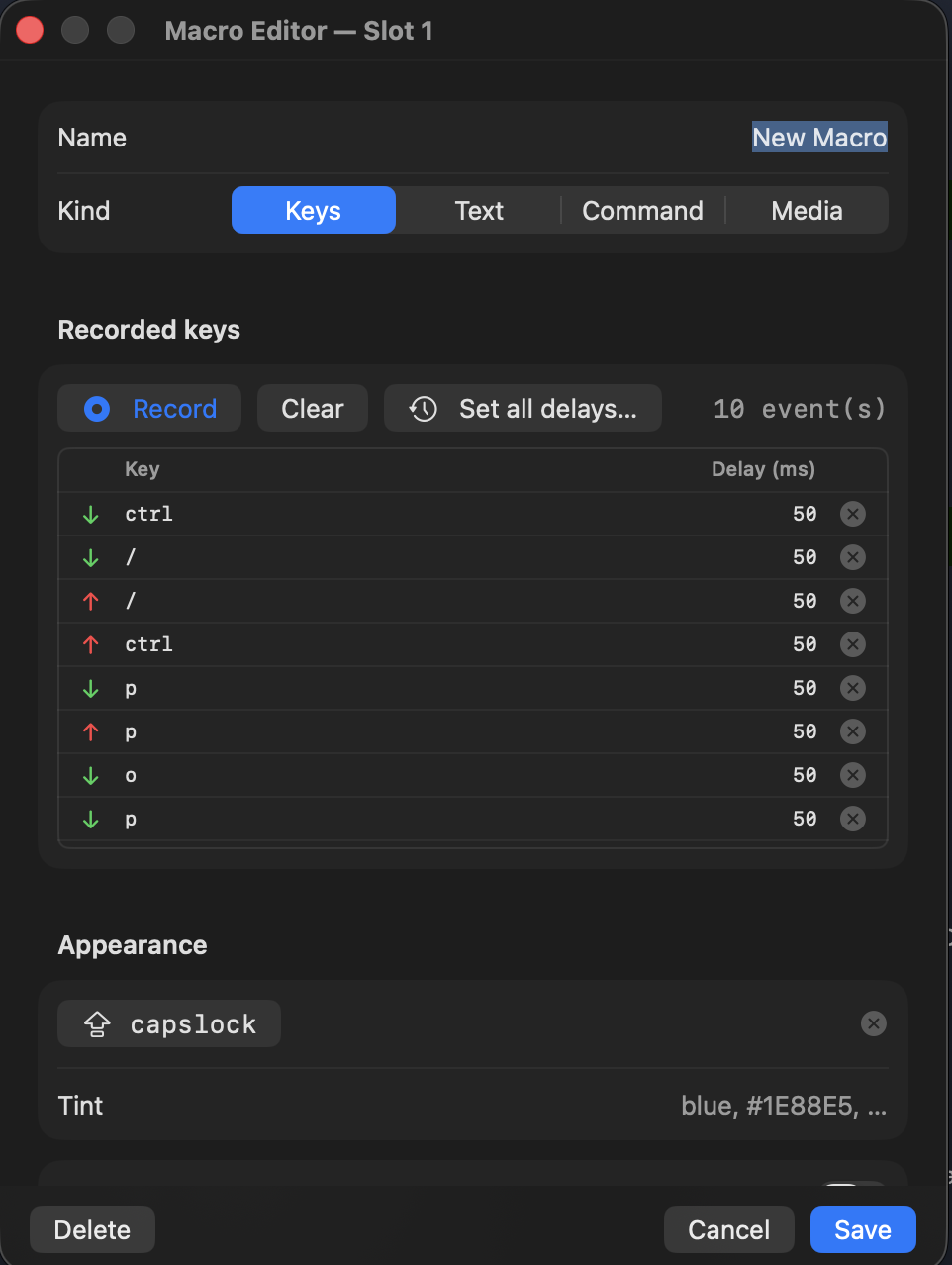
The app part was easy. Getting macOS to let a launcher send keystrokes to other apps without stealing focus, and to ask for Accessibility permission honestly instead of as “python3 wants to control your computer,” was the actual project. It’s a native Swift rewrite now, with a real menu bar popover, vibrancy, and a permission flow that deep-links you to the exact System Settings pane and polls until you’ve flipped the toggle.
- github.com/burghr/Macro-Deck:
bash install.shbuilds it, registers a LaunchAgent so it starts at login, and walks you through the permission grants.
Five apps, one theme: each one started as a small annoyance that macOS wouldn’t fix, and ended as something I now can’t work without. Maccy is the one I happily pay for. The rest are sitting on GitHub, free, with the source open if you want to make them yours.