Batch Plugin Update
Updates every ServiceNow plugin with one waiting, in a single pass instead of one at a time.
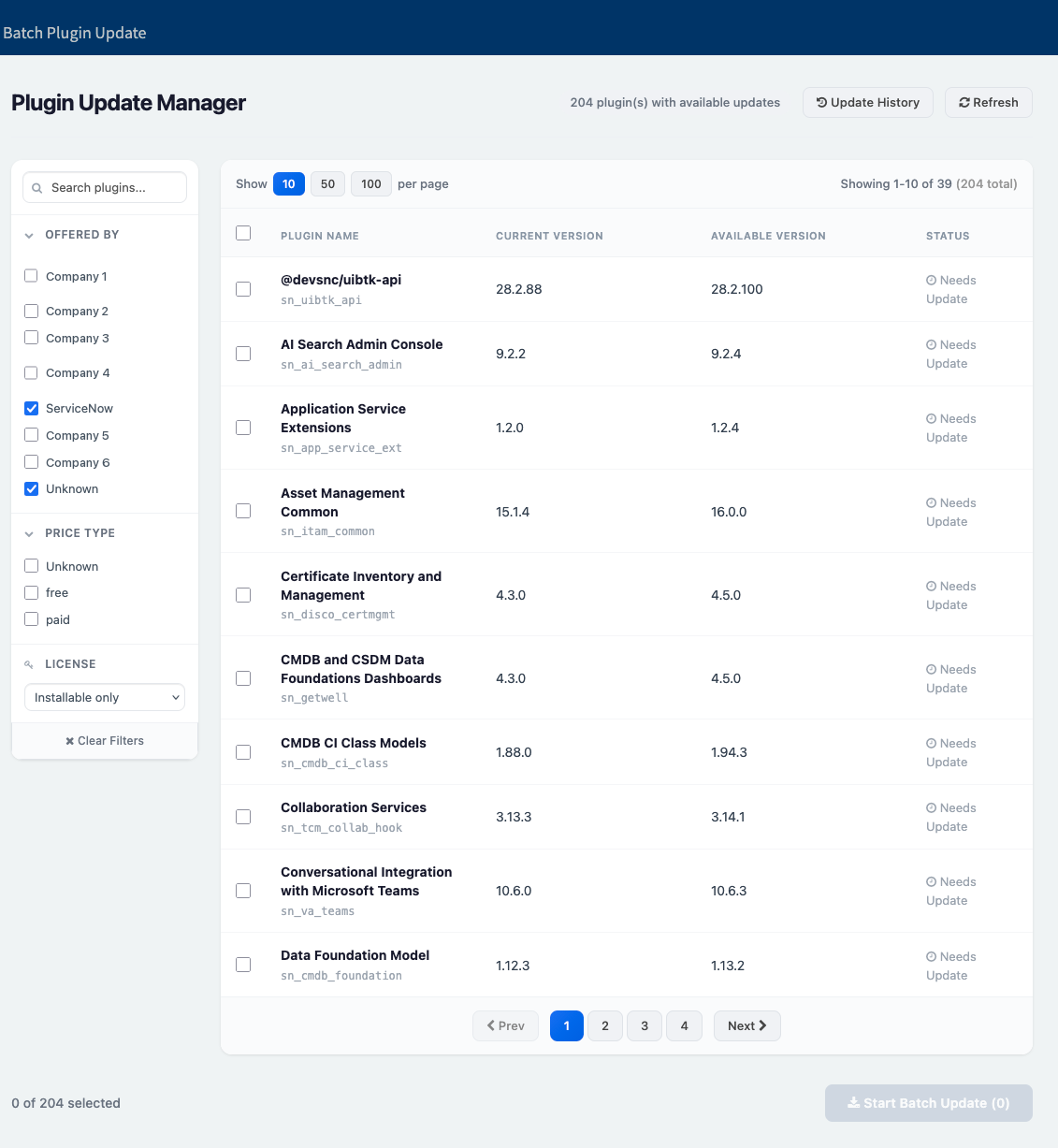
Updating plugins in ServiceNow is a one-at-a-time job. On a mature instance that is an afternoon: the one in the screenshot has 204 of them waiting.
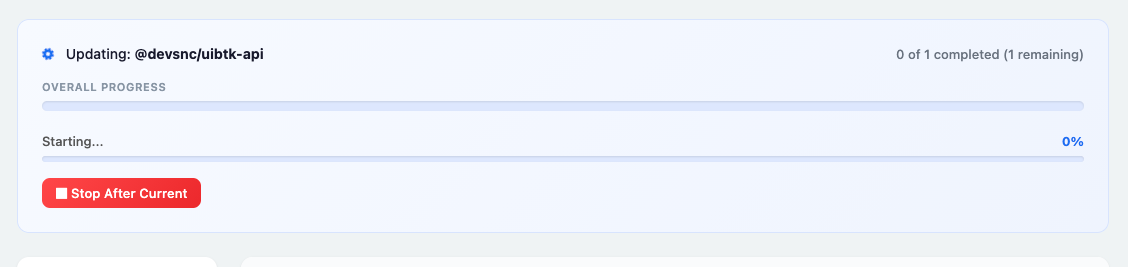
This widget finds every installed app with a newer version available and puts them in one table, with the version you are on beside the version you could be on. Tick the ones you want, or tick the header to take the lot, and it runs them in order. While it works it names the plugin it is on, counts down what is left, and has a button to stop after the current one rather than yanking the floor out mid-update.
The filters down the side are there because the list is long: by the company that publishes the app, by free or paid, by whether you are licensed to install it, or by name.
Install
- In your instance, go to Service Portal, then Widgets, and create a new widget.
- Copy each file from the repo into the matching field: the template into Body HTML, the client script into Client controller, the server script into Server script, the styles into CSS, and the option schema into Option schema.
- Add the widget to a Service Portal page.
It needs the CICD plugin (sn_cicd) switched on, and an account that is allowed to install plugins.